Network Settings
The Network section allows you to configure essential security and traffic control settings for your application. This includes managing Cross-Origin Resource Sharing (CORS) policies and setting up API rate limiting to protect your backend from abuse.
To access this section, navigate to Settings > Network in the left-hand sidebar menu.
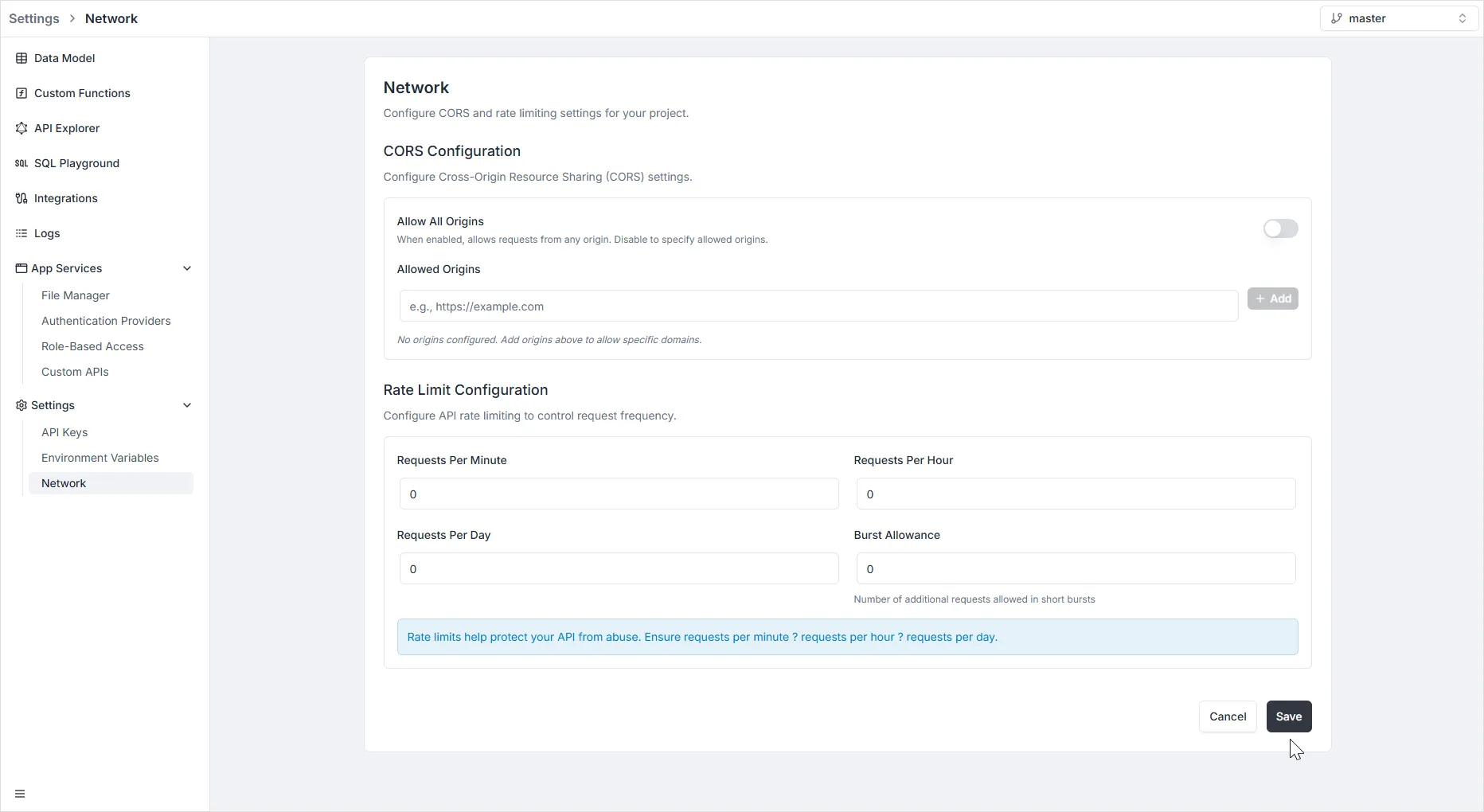
CORS Configuration
Section titled “CORS Configuration”Cross-Origin Resource Sharing (CORS) controls which external domains (origins) are permitted to access your API resources. This is a critical security feature for preventing unauthorized websites from interacting with your backend.
Configuration Options
Section titled “Configuration Options”-
Allow All Origins:
- Toggle Switch: When enabled, this allows requests from any origin (domain). This is often useful during early development but is generally discouraged for production environments due to security risks.
- Disable: Turn this off to enforce a strict whitelist of allowed domains.
-
Allowed Origins:
- Input: If “Allow All Origins” is disabled, use this field to specify the exact domains that can access your API (e.g.,
https://example.comorhttps://app.yourdomain.com). - Add: Click the + Add button to include the domain in your whitelist.
- Input: If “Allow All Origins” is disabled, use this field to specify the exact domains that can access your API (e.g.,
Rate Limit Configuration
Section titled “Rate Limit Configuration”Rate limiting helps protect your API from abuse, brute-force attacks, or accidental traffic spikes by capping the number of requests a client can make within a specific timeframe.
Limit Settings
Section titled “Limit Settings”You can define limits across different time windows to create a granular traffic policy:
- Requests Per Minute: The maximum number of requests allowed in a 60-second window.
- Requests Per Hour: The maximum number of requests allowed in a 60-minute window.
- Requests Per Day: The maximum number of requests allowed in a 24-hour window.
- Burst Allowance: The number of additional requests allowed to exceed the rate limit for a very short period. This accommodates legitimate, sudden spikes in user activity without blocking them immediately.
Saving Changes
Section titled “Saving Changes”After configuring your CORS or Rate Limit settings, click the grey Save button at the bottom right of the screen to apply your changes.