API Explorer
The API Explorer is an in-browser IDE for exploring a project’s GraphQL API. It allows Archie Core developers to easily build and execute GraphQL queries from within the workspace.
The API Explorer makes use of your real, live production data.
Introspection
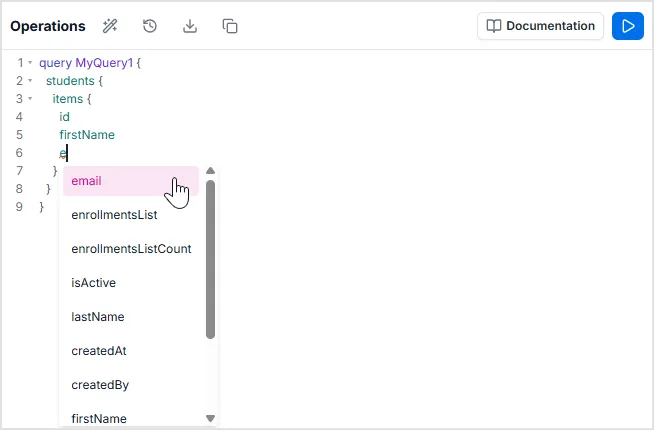
Section titled “Introspection”A GraphQL schema has a built-in introspection system that publishes the schema’s structure. This allows the API Explorer to provide powerful auto-complete features when writing out GraphQL queries.
Once inside the items block, type “em”. From here, it’s easy to see and select the email field from the available operations in the API. The auto-complete is contextual to where you are in the query being built, and filters options based on what’s being typed.
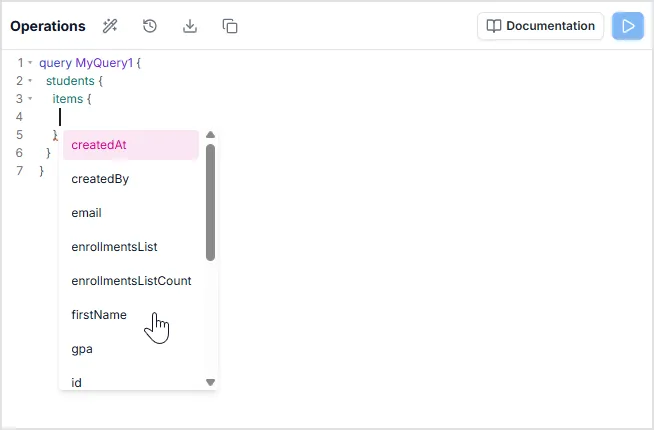
To manually activate the auto-complete menu and view available options, press the key combination [Shift] + [SPACE]. This action displays the context menu, allowing you to select the desired field, such as items, from the list.
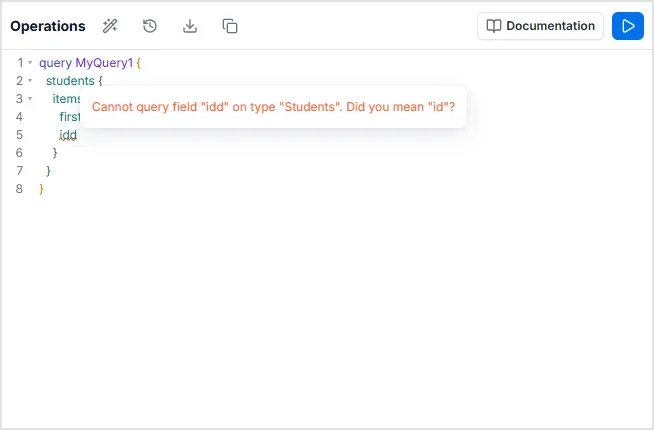
Additionally, introspection helps us detect errors in queries. The system recognizes when different types are either not available or incorrectly configured - things like, Number should be String, field not available on table, as well as validations. Therefore, when using the API Explorer, hover over squiggly-red lines to reveal error tool tips.
Accessing API Documentation
Section titled “Accessing API Documentation”The API Explorer includes a built-in schema reference to help you understand your data model while writing queries. There are two ways to access this:
1. The Documentation Panel
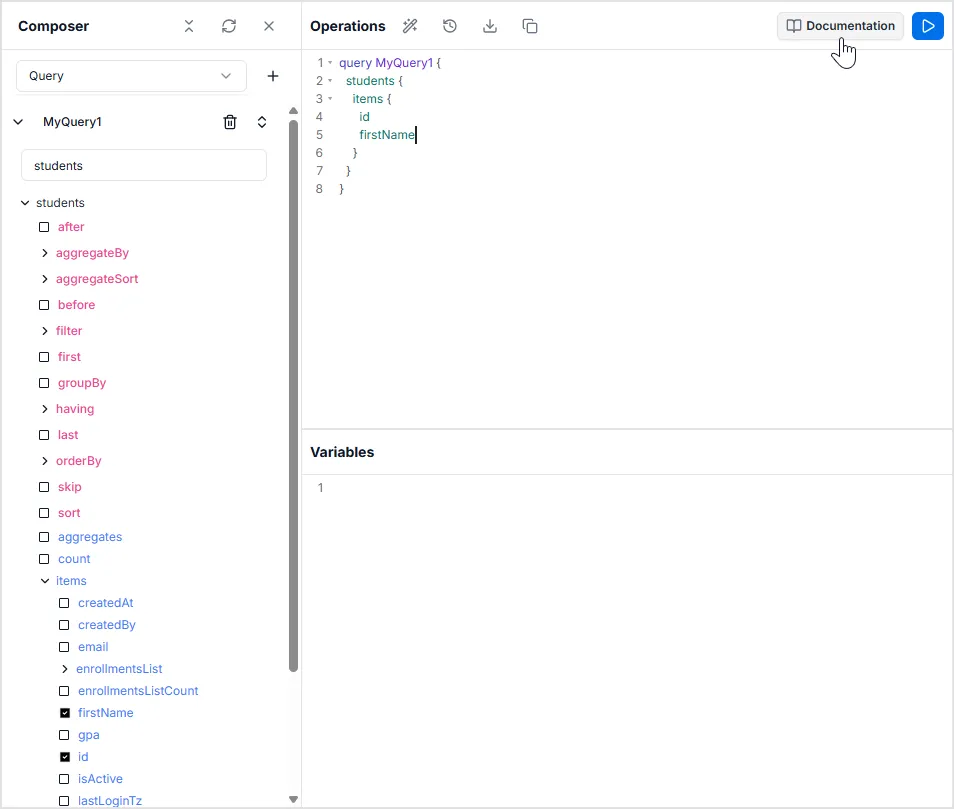
Section titled “1. The Documentation Panel”Click the Documentation button located in the top-right toolbar. This toggles a sidebar on the left where you can browse and search through all available Queries, Mutations, and Types.
2. Contextual Quick-Navigation
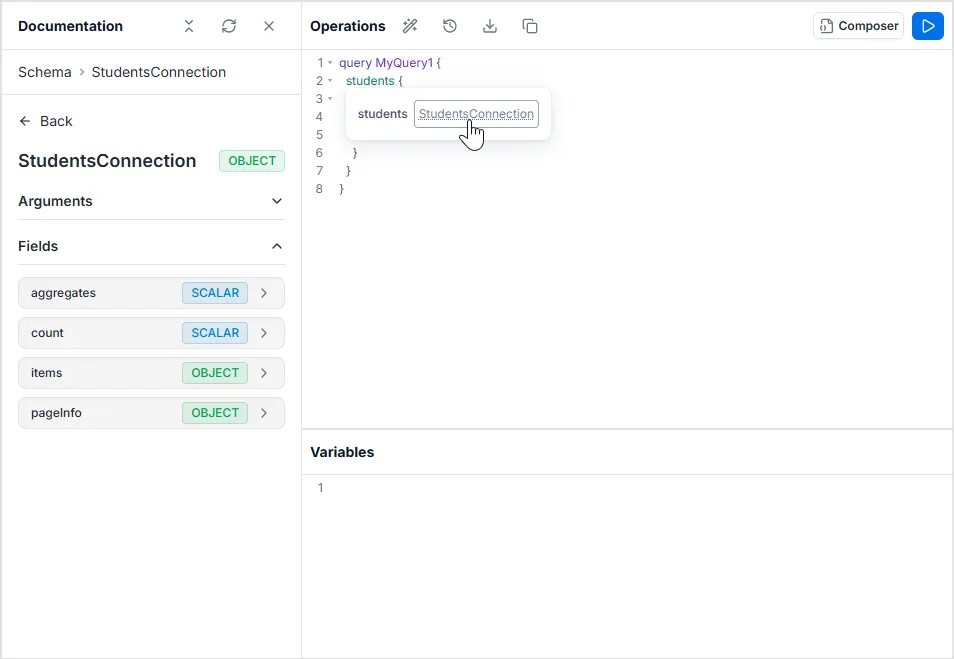
Section titled “2. Contextual Quick-Navigation”As shown in the image, you can jump directly to the documentation for a specific field you are typing:
- Hover over a field name (e.g.,
cities) in the editor. A tooltip will appear showing its return type (e.g.,CitiesConnection). - Click on the type name inside the tooltip.
- The Documentation sidebar will automatically open and navigate directly to that specific type definition, showing you all available sub-fields (like
items,count,aggregates) and their descriptions.
Composer
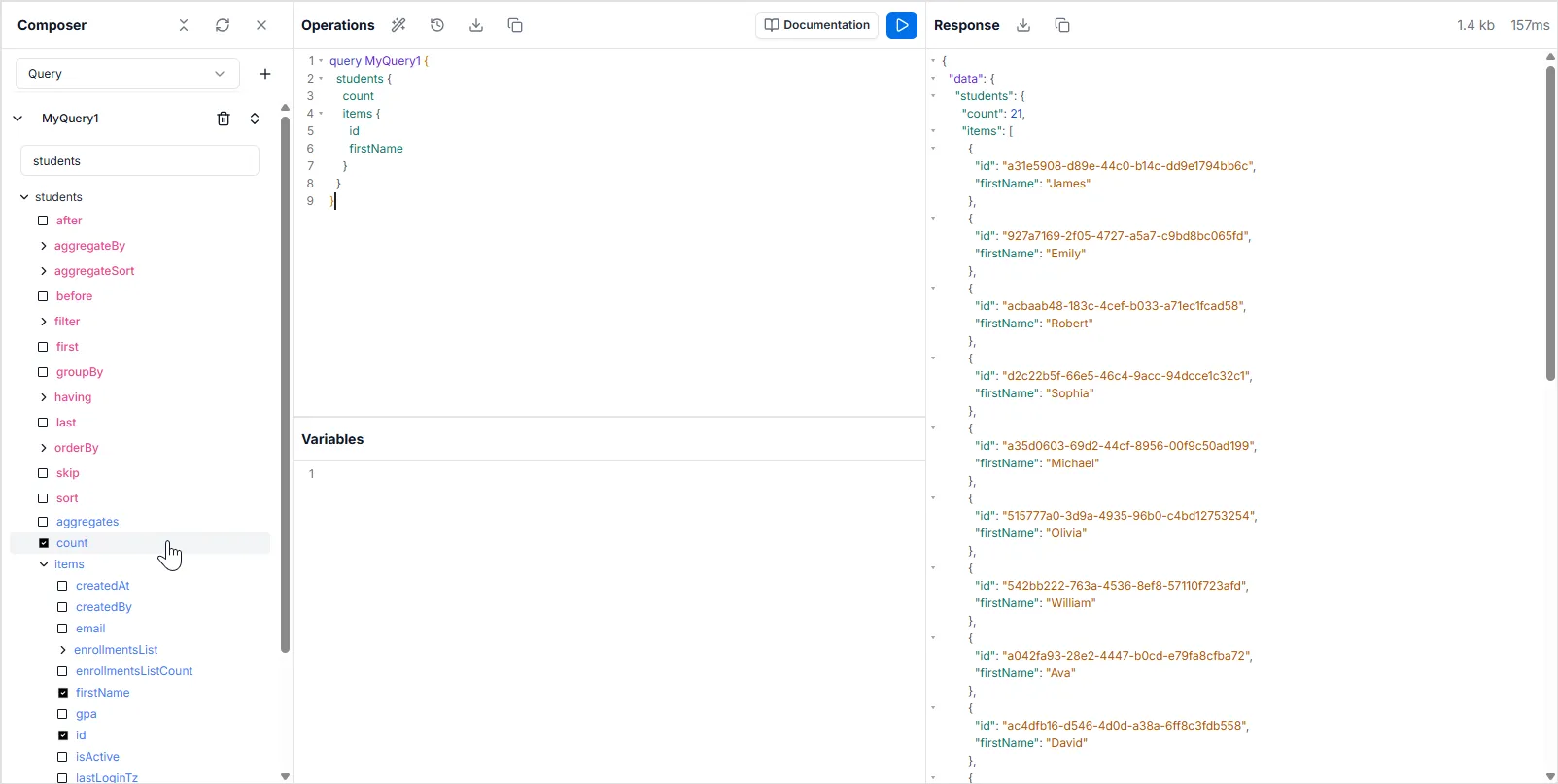
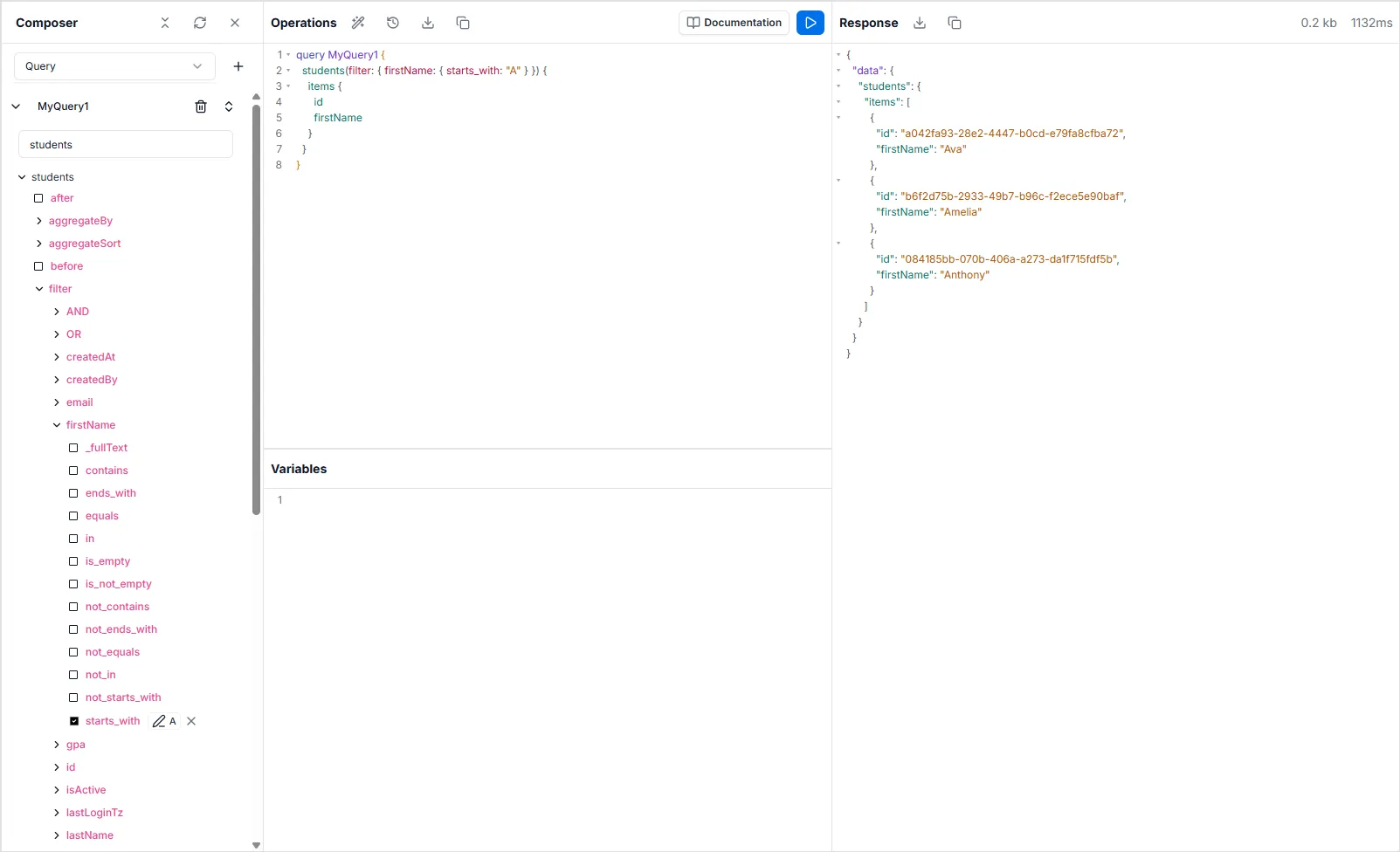
Section titled “Composer”The Composer is a visual query-building tool that is typically open by default on the left side of the API Explorer. It allows you to select fields and arguments to automatically generate valid GraphQL syntax.
If you have closed the panel or do not see it, you can easily reopen it:
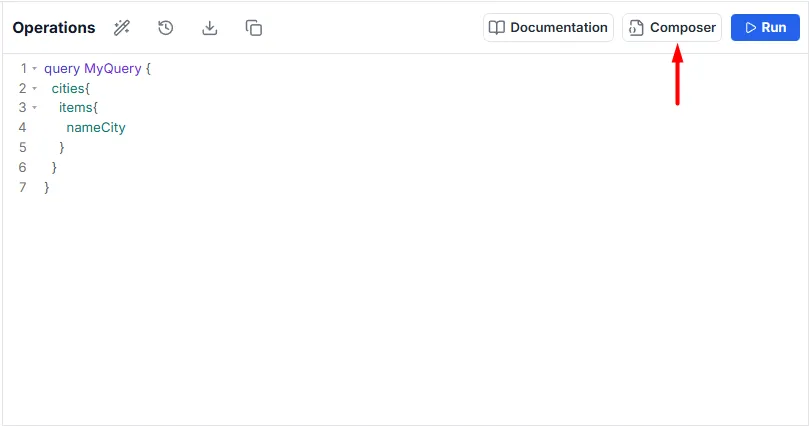
- Look for the Composer button located in the top-right toolbar.
- It is positioned directly next to the Documentation button.
- Clicking this button will toggle the Composer sidebar, bringing the visual editor back into view.
Try opening the cities and checking the count option. The following query will populate the text area, which can be executed to check how many cities there are.
query MyQuery { cities { items { nameCity } }}