File Manager
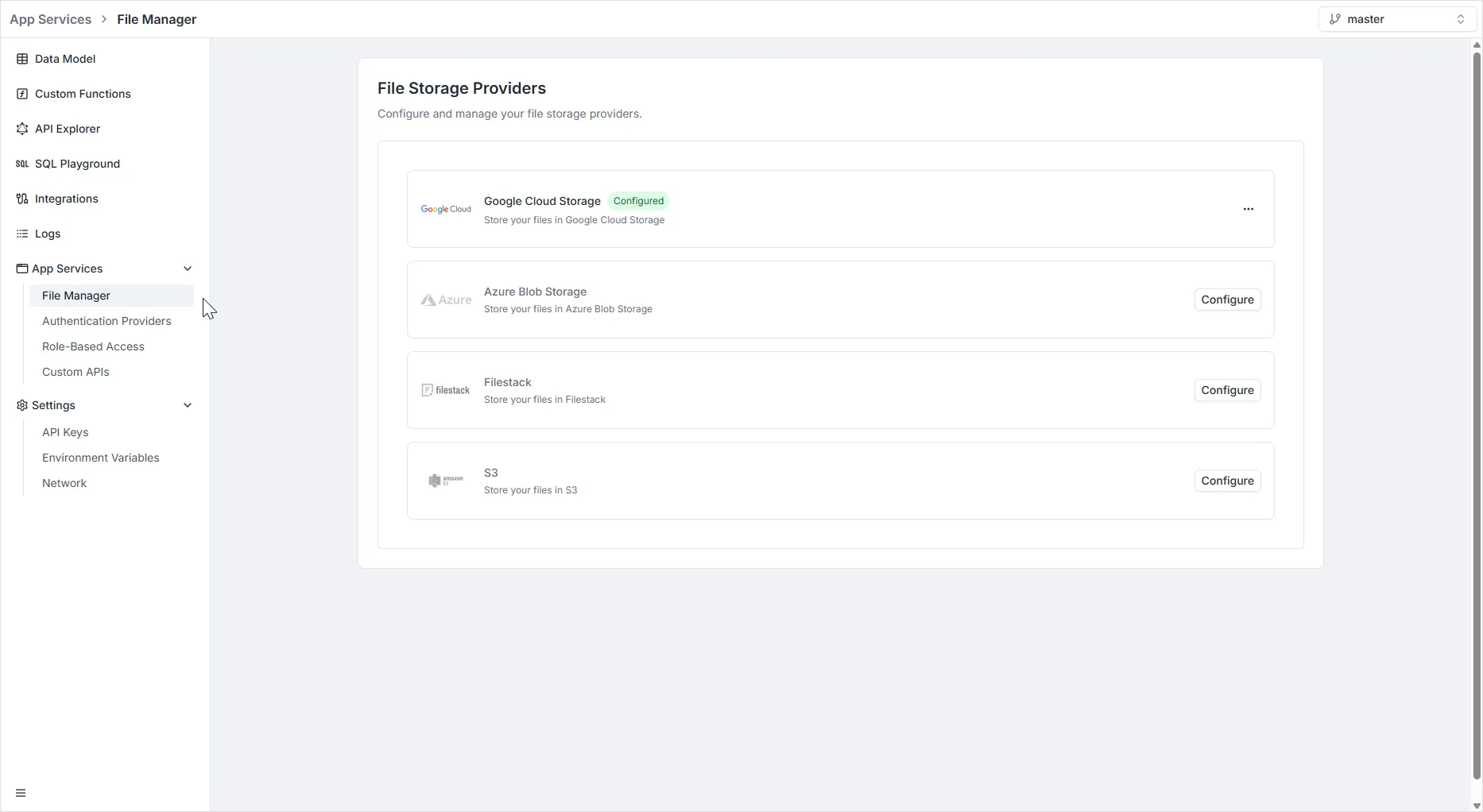
The File Manager acts as the central configuration hub for your application’s storage layer. It allows you to connect your backend to external cloud storage providers to handle user uploads, media assets, and file management.
To access this section, navigate to App Services > File Manager in the left-hand sidebar.
Note: File storage providers are scoped per environment. Each environment has its own set of configured providers. When branching a new environment, you can optionally copy file provider configurations by enabling the File storage providers checkbox in the branching modal. Each copied provider receives a new unique identifier.
Supported Providers
Section titled “Supported Providers”You can configure any of the following providers by clicking the Configure button next to the desired service.
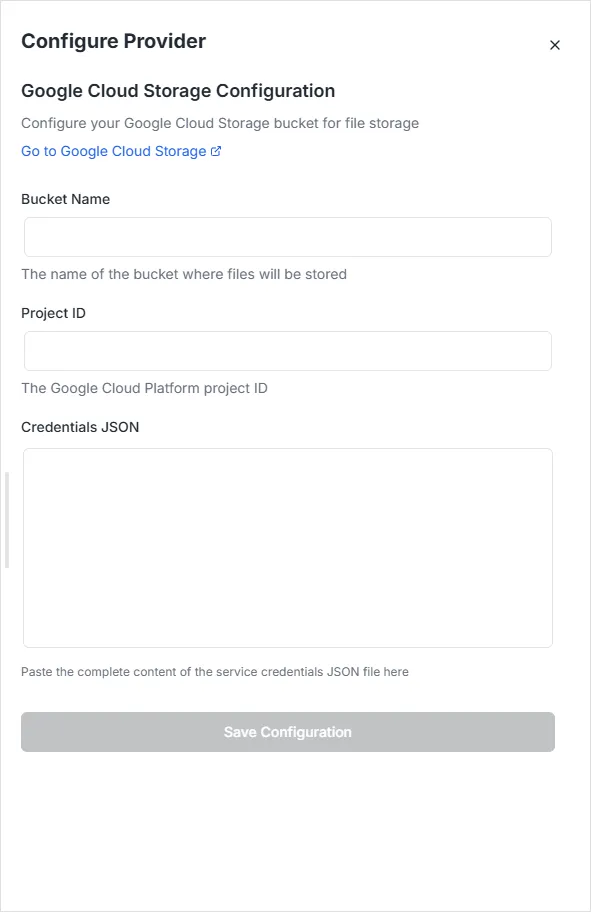
1. Google Cloud Storage
Section titled “1. Google Cloud Storage”Connects your application to a Google Cloud Platform (GCP) storage bucket.
- Bucket Name: The name of the specific bucket created in your GCP console.
- Project ID: The unique identifier of your Google Cloud Platform project.
- Credentials JSON: You must paste the complete content of your Service Account’s credentials JSON file here to authorize the connection.
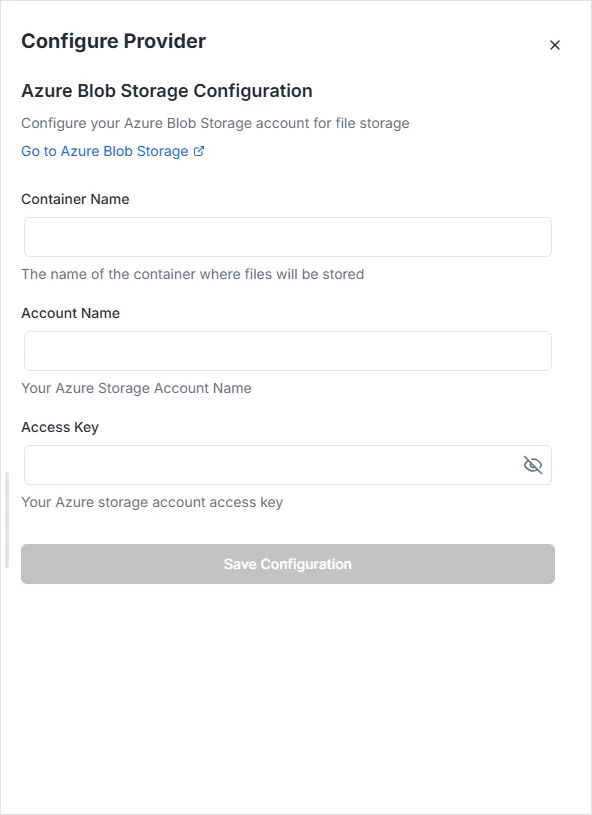
2. Azure Blob Storage
Section titled “2. Azure Blob Storage”Connects your application to a Microsoft Azure storage container.
- Container Name: The name of the container within your storage account.
- Account Name: The name of your Azure Storage Account.
- Access Key: The storage account access key used to authenticate requests.
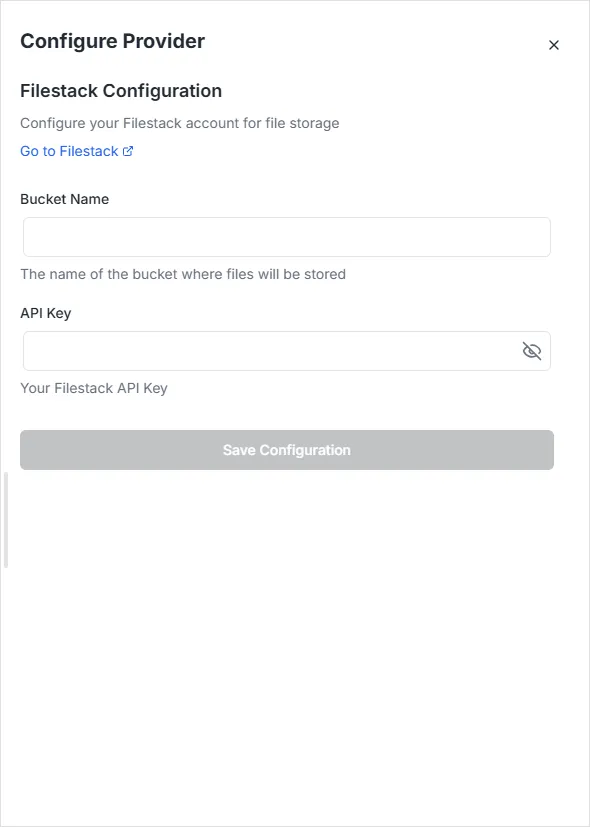
3. Filestack
Section titled “3. Filestack”Connects your application to the Filestack content delivery network and file handling service.
- Bucket Name: The name of the bucket associated with your Filestack storage backend.
- API Key: Your unique Filestack API Key found in your Filestack dashboard.
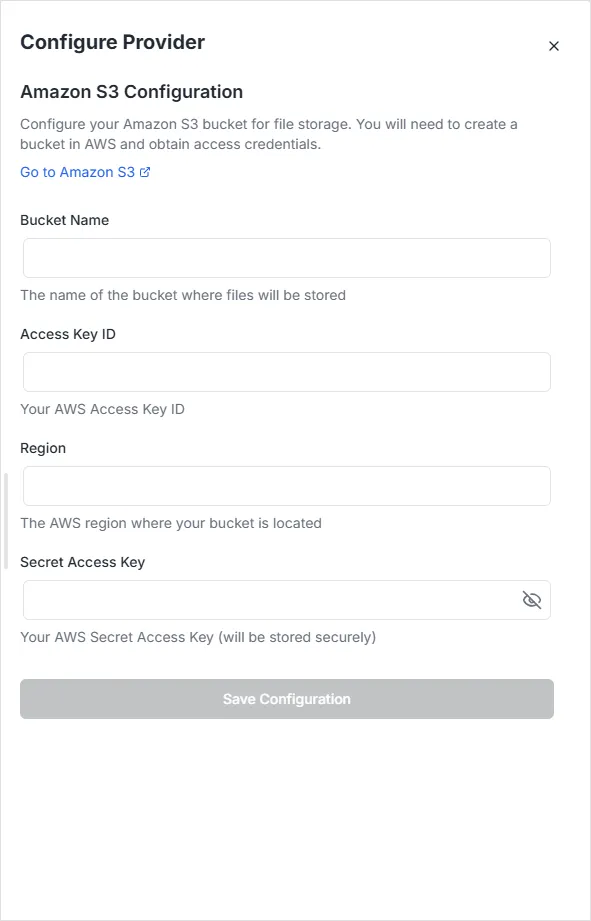
4. Amazon S3
Section titled “4. Amazon S3”Connects your application to an AWS S3 bucket.
- Bucket Name: The exact name of the S3 bucket where files will be stored.
- Access Key ID: The public identifier for your AWS IAM user.
- Region: The AWS region code where your bucket is located (e.g.,
us-east-1). - Secret Access Key: The private key associated with your Access Key ID. This is stored securely.